

A computer with Chrome
Setup happens in Google Chrome on a computer. Use the same Chrome profile for Flaim and ESPN. After you sync, there's nothing to keep running, and you can ask from any device, including your phone.
Flaim Fantasy connects your ESPN fantasy football league to ChatGPT and Claude, as a ChatGPT app (also called a plugin) and a Claude connector. ESPN fantasy baseball, basketball, and hockey work too. There's no iPhone app to download and nothing new to learn. Install the free Flaim Chrome extension on a computer, choose Sync to Flaim, and you're done with ESPN. Private leagues work, and you never give Flaim your ESPN password. Then ask about your roster, matchup, and waiver wire in ChatGPT, Claude, Perplexity, Gemini, Grok, or Muse, from any device, including your phone.
Because there's no iPhone app to download, no new app to learn, and nothing to keep running. If you're already signed in to Flaim and ESPN in Chrome on a computer, install the extension, choose Sync to Flaim, and you're done with ESPN. The extension uses the ESPN sign-in you already have, and Flaim finds your leagues for you, so there's no league ID to look up and nothing to copy or paste. Private leagues work, and you never give Flaim your ESPN password. Then you ask about your team in ChatGPT, Claude, Perplexity, Gemini, Grok, or Muse, from any device, including your phone.
Before you start
Setup happens in Google Chrome on a computer. Use the same Chrome profile for Flaim and ESPN. After you sync, there's nothing to keep running, and you can ask from any device, including your phone.
Sign in to your free Flaim account. That's where your ESPN leagues will show up.
Sign in to ESPN Fantasy in Chrome. Private leagues work, and you never give Flaim your ESPN password.
Open ESPN FantasySet up ESPN
Step 1
Open Flaim in Chrome and sign in to the Flaim account where you want your leagues to appear.
Step 2
In the same Chrome profile, open ESPN Fantasy and make sure you can open the league you want to connect.
Step 3
Install the free Flaim ESPN Fantasy Connector, then open it from Chrome's puzzle-piece Extensions menu.
Step 4
Choose Sync to Flaim in the popup. Keep the popup open until it shows the league result.
Step 5
Open Your Leagues and confirm the league name, your team, and the season.
Step 6
Open Flaim Fantasy in ChatGPT or Claude, or add it in Perplexity, Gemini, Grok, or Muse. Sign in with the same Flaim account, and ask what fantasy leagues you have.
These examples use a demo Flaim account, league, and team. Your names will appear in the same places.
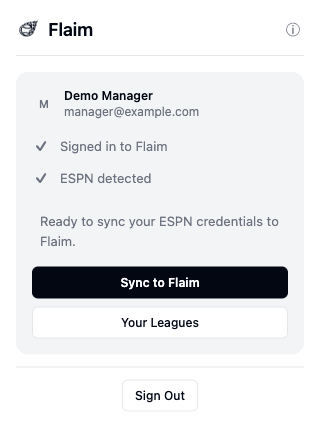
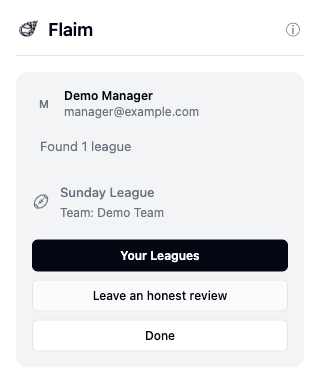
The account shown in the Flaim popup is the Flaim account that receives your leagues. ESPN access comes from the ESPN account signed in to the same Chrome profile.
Questions
While you're signed in to Flaim and ESPN in Chrome on a computer, install the free Flaim Chrome extension and choose Sync to Flaim. There's no iPhone app to download. Then open Flaim Fantasy in ChatGPT, sign in with your Flaim account, and ask about your team from any device, including your phone. Private leagues work, and Claude works the same way.
No. There's no iPhone or Android app to download. Flaim Fantasy works inside ChatGPT and Claude, and you can add it in Perplexity, Gemini, Grok, or Muse. For ESPN, add the free Flaim Chrome extension on a computer and choose Sync to Flaim. After that, ask about your team from any device, including your phone.
Yes. Flaim Fantasy is in Claude's connector directory and works the same way as in ChatGPT. Sync ESPN with the Chrome extension, add Flaim Fantasy in Claude, and sign in with the same Flaim account. Private leagues work.
Yes. Flaim Fantasy is a free ChatGPT plugin, with no separate app to download, that connects ESPN Fantasy leagues, including private ones, so ChatGPT can read your real roster, matchup, standings, and waiver wire. It can't change anything in your league.
Yes. Private leagues are what the Chrome extension is for. If you can open the league while signed in to ESPN in Chrome, Flaim can sync it. Football, baseball, basketball, and hockey all work.
No. You sign in to ESPN yourself in Chrome, and Flaim never sees your ESPN password. The extension syncs only the sign-in details Flaim needs to read your league. They're stored securely and never shared with ChatGPT, Claude, or any other AI app.
In Chrome, select the Extensions puzzle-piece menu near the address bar, then choose Flaim ESPN Fantasy Connector. You can pin it from that menu to keep it beside the address bar.
Make sure flaim.app is signed in within the same Chrome profile where you installed the extension. Then close the popup completely and open it again from Chrome's Extensions menu.
Open ESPN Fantasy in the same Chrome profile as Flaim, sign in there, and confirm your league opens. Return to the Flaim popup and try Sync to Flaim again.
Open the league in ESPN Fantasy and confirm the correct ESPN account is active in this Chrome profile. Sync once more. If the result is still empty, open the info panel in the Flaim popup, choose Copy support info, and email it to support@flaim.app. It never includes your ESPN sign-in or any tokens.
Your ESPN access may have saved even though the league check timed out or failed. Open Your Leagues to see whether anything was saved, then return to the popup and retry. If it keeps failing, copy the support info from the popup's info panel and email support@flaim.app.
Open ESPN Fantasy in Chrome, make sure you are still signed in, then open the Flaim popup and sync again. ESPN can sign you out or you may have switched Chrome profiles.
The ESPN sync happens in Chrome on a computer, since phones can't run Chrome extensions. Everything after that works on your phone: ask about your team in ChatGPT, Claude, Perplexity, Gemini, Grok, or Muse. If you start on your phone, open Your Leagues, choose Email me the setup link under ESPN, and Flaim emails you the link for later.